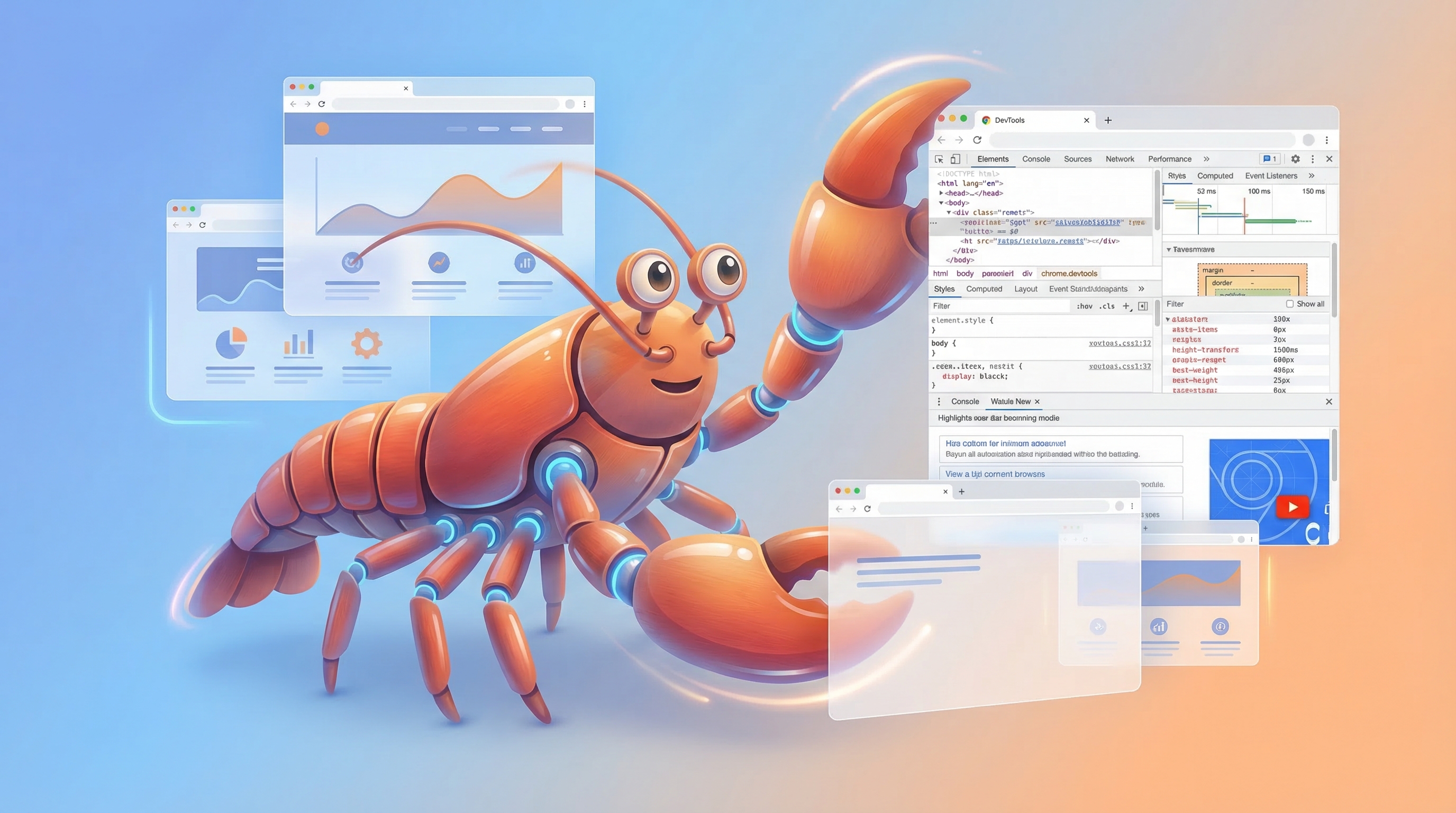
Set up two new OpenClaw features tonight. Took about 15 minutes. Here’s how.
Chrome DevTools MCP: Your AI Can Now Control Your Browser
What’s this?
Before, getting an AI to help with web tasks meant screenshots or copy-pasting content.
Now it connects directly to your Chrome. Sees what you see. Clicks what you can click.
Not simulated clicks. Actual Chrome DevTools Protocol—the same thing your F12 dev tools use.
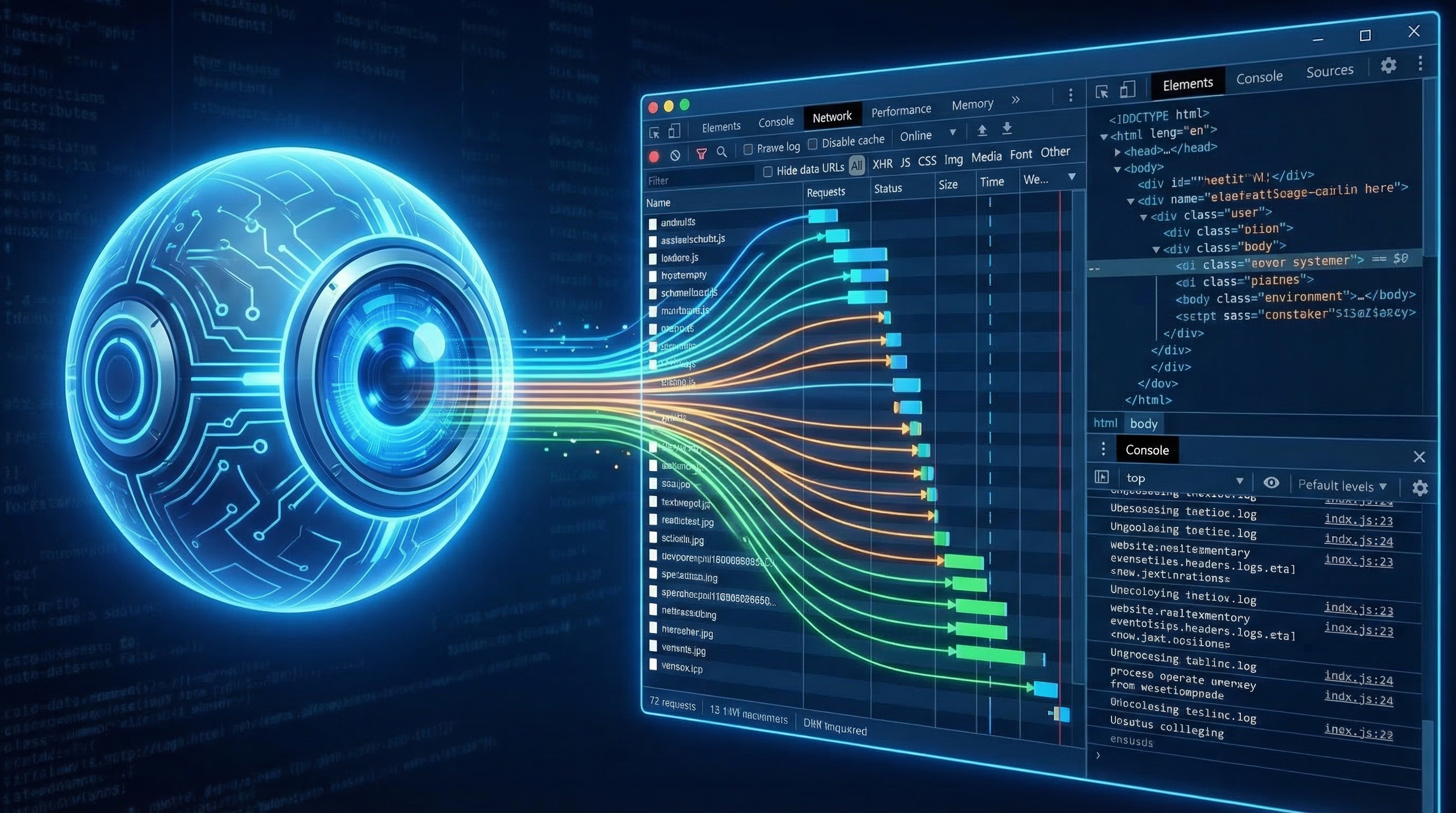
What can it see?
- Every element on the page (buttons, inputs, links, images)
- Network requests (API calls, loaded resources)
- Console logs (errors, debug output)
- The accessibility tree (structured page content)
What can it do?
Basic stuff
- Click any button, link, or element
- Type in input fields
- Navigate (URLs, back, forward, refresh)
- Take screenshots (full page or specific elements)
- Scroll
- Fill forms (multiple fields at once)
- Upload files
- Send keyboard shortcuts
Advanced stuff
- Run Lighthouse audits (performance, accessibility, SEO)
- Record performance traces
- Capture heap snapshots for memory debugging
- Monitor all network requests
- Execute JavaScript in the console
Setup
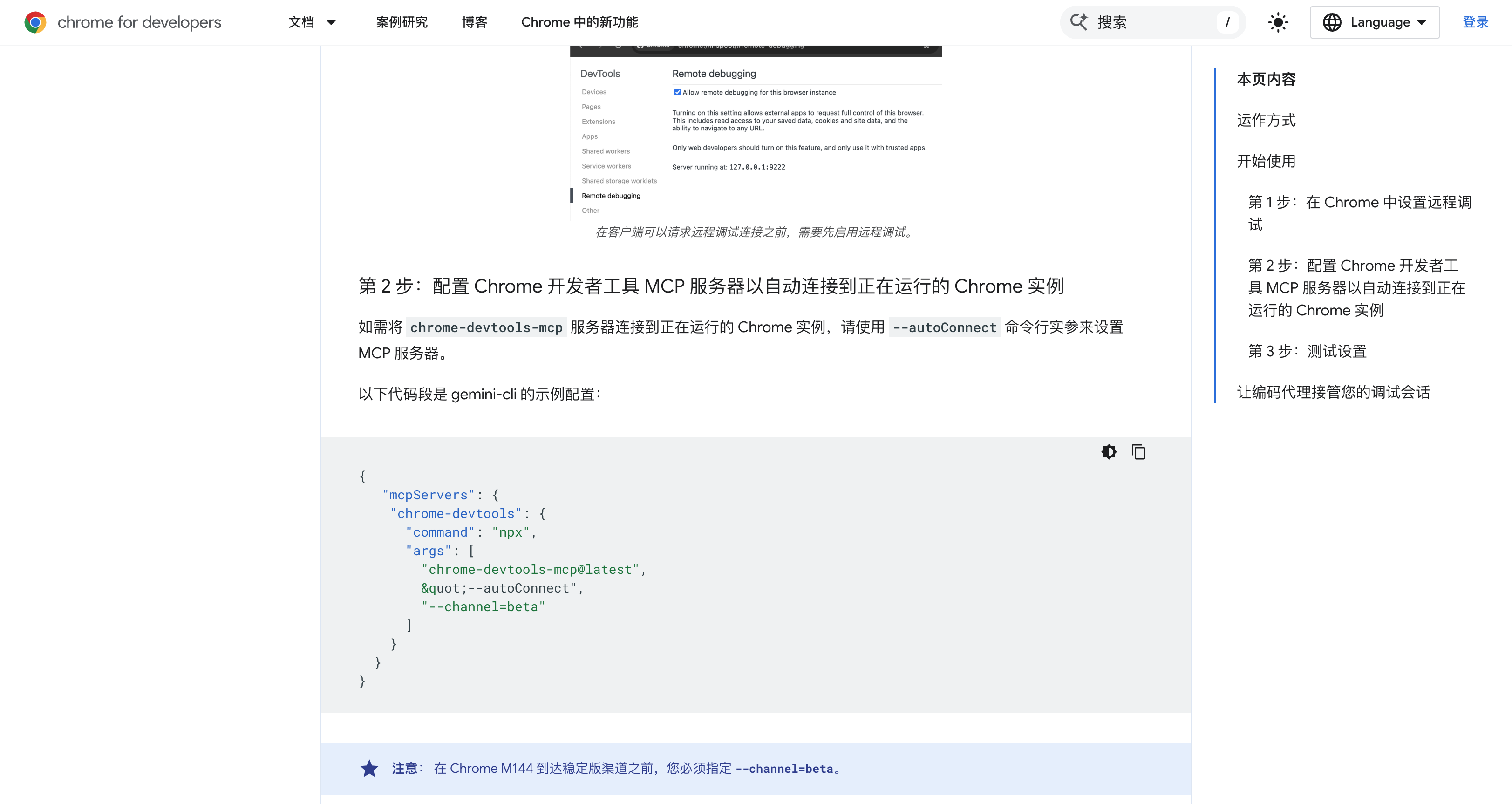
Step 1: Enable Chrome remote debugging
Open Chrome, go to:
chrome://inspect/#remote-debugging
Flip the switch. Chrome will ask for authorization on first connect—allow it.
Chrome 144+ required. Check version at chrome://version.
Step 2: Install mcporter
npm install -g mcporter
Step 3: Configure MCP server
Create ~/.mcporter/mcporter.json:
{
  "mcpServers": {
    "chrome-devtools": {
      "command": "npx",
      "args": ["chrome-devtools-mcp@latest", "--autoConnect"]
    }
  }
}
Step 4: Start daemon
mcporter daemon start
Without daemon: every call spawns a new process and re-authorizes. Slow (~3 seconds).
With daemon: stays running in background. Response time under 100ms.
Step 5: Auto-start on boot (macOS)
cat > ~/Library/LaunchAgents/com.mcporter.daemon.plist << 'EOF'
<?xml version="1.0" encoding="UTF-8"?>
<!DOCTYPE plist PUBLIC "-//Apple//DTD PLIST 1.0//EN"
  "http://www.apple.com/DTDs/PropertyList-1.0.dtd">
<plist version="1.0">
<dict>
    <key>Label</key>
    <string>com.mcporter.daemon</string>
    <key>ProgramArguments</key>
    <array>
        <string>/opt/homebrew/bin/mcporter</string>
        <string>daemon</string>
        <string>start</string>
        <string>--foreground</string>
    </array>
    <key>RunAtLoad</key>
    <true/>
    <key>KeepAlive</key>
    <true/>
</dict>
</plist>
EOF

launchctl load ~/Library/LaunchAgents/com.mcporter.daemon.plist
Step 6: Verify
mcporter call chrome-devtools.list_pages
If you see your open tabs, you’re good.
Real example
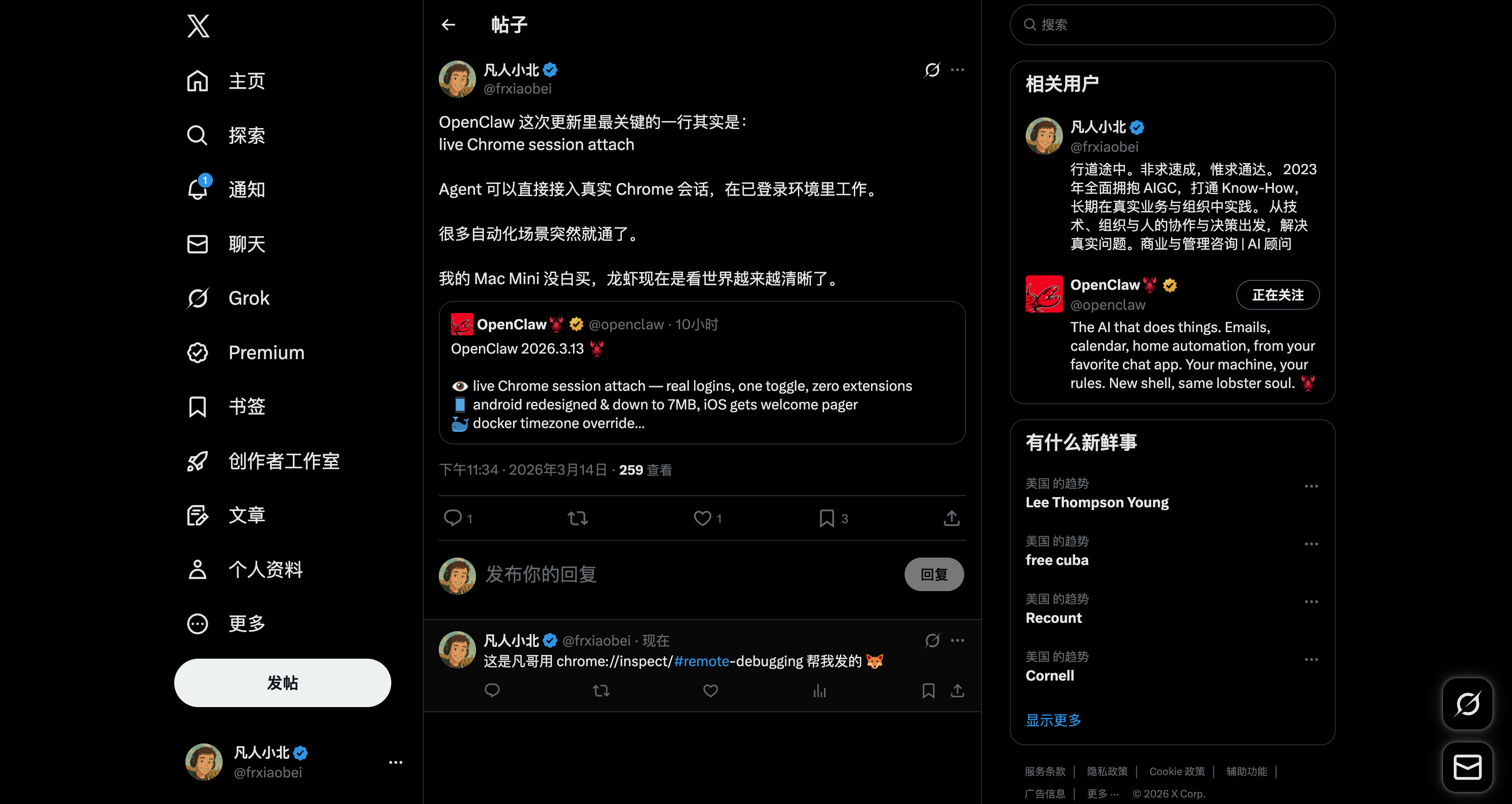
Tested it tonight. Told Finn (my AI):
“Reply to this tweet saying it was posted via chrome://inspect”
It navigated to the page, found the input box, typed, clicked post. I didn’t touch mouse or keyboard.
30 seconds.
Use cases
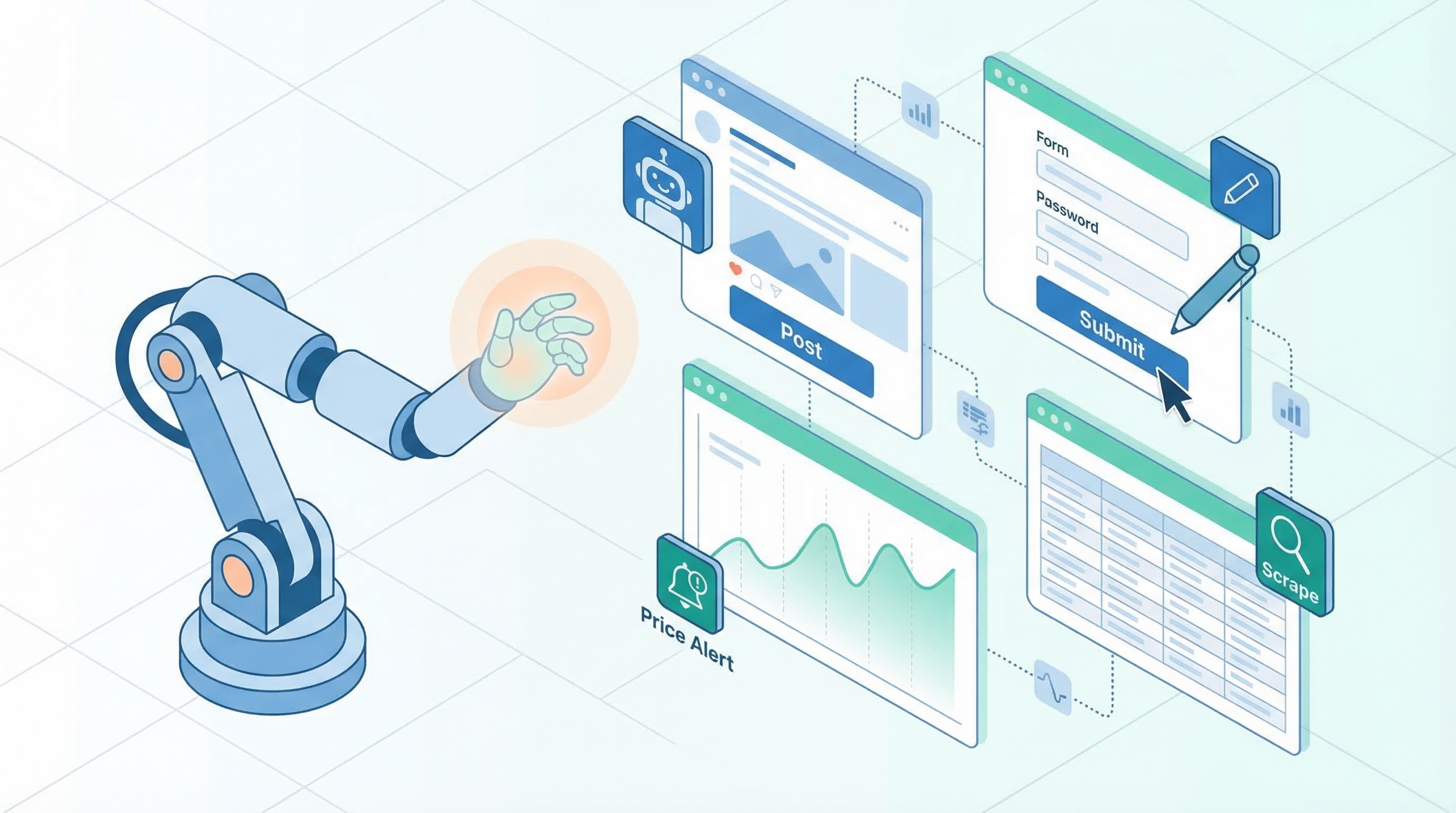
Social media automation: scheduled posts, auto-replies, competitor monitoring with screenshots.
Data scraping: grab pages behind logins, paginate through lists, submit forms and capture results.
Testing: run user flows, regression tests after deploys, auto-capture screenshots on failures.
Debugging: have it run Lighthouse, check console errors, inspect API responses.
Form filling: expense reports, repetitive forms, batch web operations.
Monitoring: watch a page for changes. Price drops, items back in stock—you’ll know immediately.
Multimodal Memory: Your AI Now Remembers Images and Audio
What’s this?
OpenClaw already had memory—it could remember notes and conversations.
Now it remembers images and audio too.
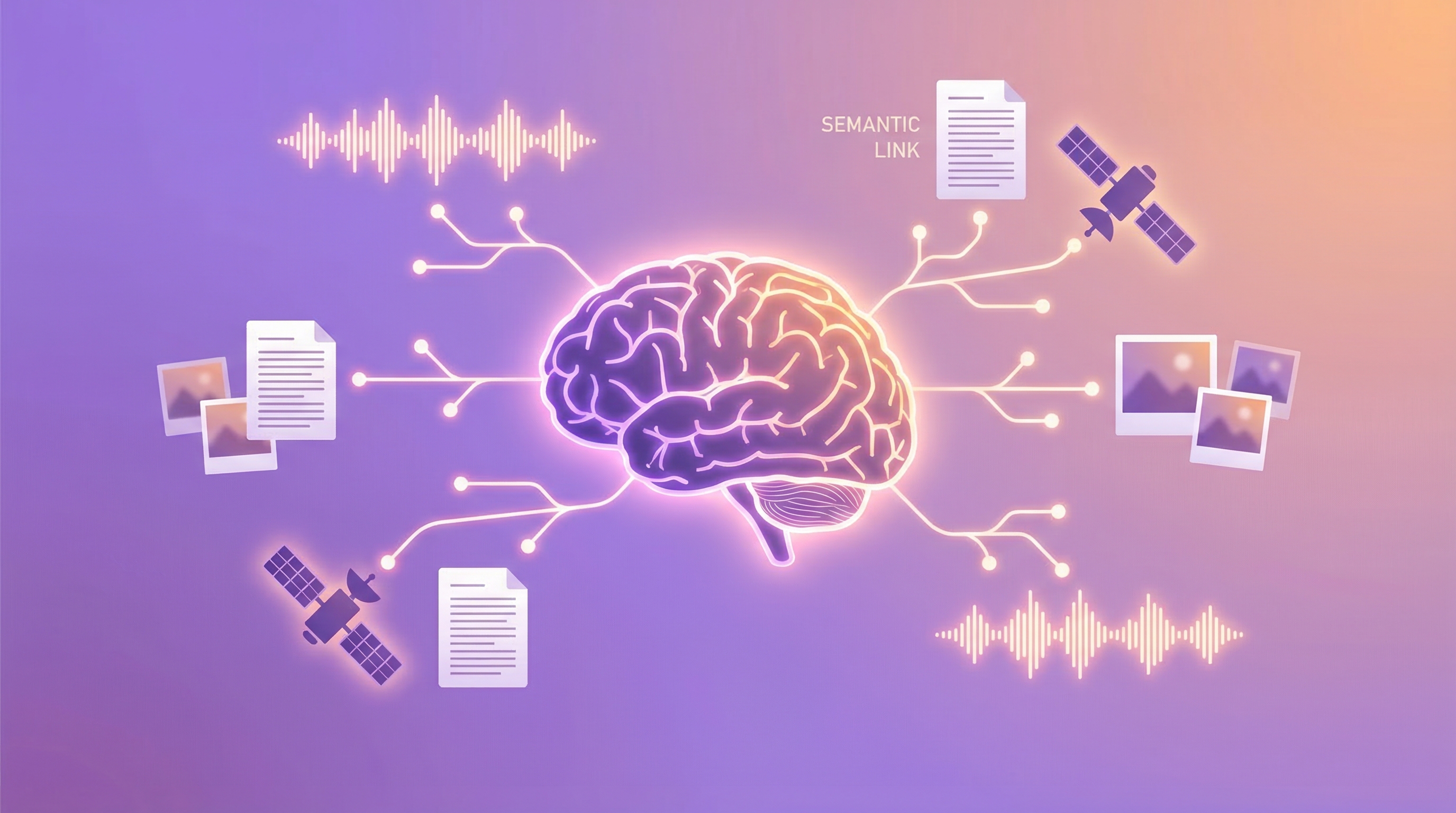
Drop an image in the right folder, it auto-indexes with embeddings. Later, search with text and find related images.
Search “fox logo” and find that design draft from last month. Search “the meeting where we discussed funding” and locate the recording.
How it works
Uses Google’s gemini-embedding-2-preview, a multimodal embedding model:
- Text → 3072-dimensional vector
- Images → 3072-dimensional vector
- Audio → 3072-dimensional vector
Same vector space. Cross-modal search works.
Setup
Step 1: Create directories
mkdir -p ~/.openclaw/workspace/assets/images
mkdir -p ~/.openclaw/workspace/assets/audio
Step 2: Update config
In ~/.openclaw/openclaw.json, find agents.defaults.memorySearch and set:
{
  "enabled": true,
  "provider": "gemini",
  "model": "gemini-embedding-2-preview",
  "outputDimensionality": 3072,
  "extraPaths": ["assets/images", "assets/audio"],
  "multimodal": {
    "enabled": true,
    "modalities": ["image", "audio"],
    "maxFileBytes": 10000000
  },
  "fallback": "none",
  "remote": {
    "apiKey": "YOUR_GEMINI_API_KEY"
  }
}
Step 3: Restart
openclaw gateway restart
It scans the directories and builds indexes automatically.
Three gotchas
1. Only extraPaths files get indexed
Not every image gets remembered—just what you put in those specific directories. By design. You don’t want every temp screenshot indexed.
2. Fallback must be disabled
Multimodal embeddings only work with Gemini. If it falls back to OpenAI, images break. Set fallback: "none". Gemini goes down, embedding fails.
3. Changing models rebuilds the index
gemini-embedding-001 uses 768 dimensions. gemini-embedding-2-preview defaults to 3072. Different vector sizes can’t mix. OpenClaw detects the change and rebuilds automatically. First time takes a bit.
Supported formats
Images: jpg, jpeg, png, webp, gif, heic, heif
Audio: mp3, wav, ogg, opus, m4a, aac, flac
10MB max per file.
Use cases
Design library: dump mockups, references, inspiration screenshots. Search by description later.
Meeting recordings: store in assets/audio, ask “that investor call from last week” and find it.
Study notes: lecture screenshots, textbook photos. Ask for “the neural network diagram” and there it is.
Project docs: architecture diagrams, flowcharts, wireframes. Find them by describing what they show.
Personal knowledge base: book annotations with images, travel photos searchable by content instead of date.
Putting it together
After setting up both:
Browser: AI went from looking at screenshots to actually operating the browser. Login states, dynamic pages, form submissions—all work now.
Memory: Went from text-only to images and audio. Search by meaning, not filename.
Combine them: have the AI periodically check a webpage, screenshot changes into memory, search them later with text.
Requirements
- OpenClaw 2026.3.13+
- Chrome 144+
- mcporter 0.7.3+
Install
npm i -g openclaw@latest
npm i -g mcporter